
Tutorial
How to Check DNS History and Historical DNS Records for Any Domain names

Written By Qasim, WhoisFreaks Team Published: April 02, 2026, Last Updated: July 28, 2026
Tutorial
Written By Qasim, WhoisFreaks Team Published: April 02, 2026, Last Updated: July 28, 2026
Every domain has a hidden timeline of past IPs, mail servers, nameservers, and configuration changes; this is its DNS history. It provides critical context beyond current records, helping cybersecurity analysts investigate attacks, businesses perform domain due diligence, IT teams troubleshoot issues, and OSINT researchers map infrastructure. It also supports brand protection by exposing risks like hijacking, phishing, or unauthorized changes.
Although the Domain Name System wasn't designed to store historical data, its value led vendors to build DNS history databases. These tools continuously capture DNS snapshots, preserving records that would otherwise be lost when changes occur. This historical intelligence helps security teams detect risks, track infrastructure evolution, and improve attack surface visibility.
DNS history is a record of a domain's past configurations, including changes to IP addresses, nameservers, mail servers, and other DNS records. It shows how a domain's infrastructure evolved over time and can reveal migrations, ownership shifts, or potential misuse, making it essential for DNS forensics and fraud detection.
It acts like a paper trail, allowing analysts to trace infrastructure pivots, correlate related domains, and build attack timelines. Widely used in threat intelligence, DNS history is highly accessible and transparent, providing valuable insights that current DNS records alone cannot offer.
Before performing a DNS history lookup, it helps to understand the types of records that are captured and what each one reveals. The Historical DNS Lookup tool surfaces past DNS records for any domain, showing exactly how A, AAAA, MX, NS, TXT, CNAME, and SOA records changed over time. In addition to these, other records such as PTR and SPF play important roles in DNS management and troubleshooting, including IP-to-domain mapping and service location.
DNS records map domain names to specific resources such as IP addresses, mail servers, and other services.
You can retrieve DNS history using passive DNS (pDNS) databases, specialized lookup tools, and API integrations. There are two primary ways to look up DNS history with WhoisFreaks: the free web-based tool and the Historical DNS Lookup API.
The Historical DNS Lookup tool retrieves the history of domain DNS records from WhoisFreaks' continuously updated 24/7 database. You can access up to 5 historical DNS records freely; no credit card required to use this free tool.
Go to https://whoisfreaks.com/tools/dns/history/lookup.
Begin by selecting the specific record type you wish to review or opt for a comprehensive overview by choosing "all." You can select from: A, AAAA, MX, NS, TXT, CNAME, or other records such as SOA and SPF.
Type the domain (e.g., google.com) or a website URL (e.g., https://google.com) into the search box.
Enter the domain name or website URL and initiate the search to access up to 5 historical DNS records freely.
The results will display a chronological timeline of DNS record snapshots with timestamps showing when each record was observed.
For a more extensive dataset beyond the initial 5 records, you can signup now and get 500 API credits for free or you can either consider securing API credits or subscribing to our API credits subscription. This premium access ensures a comprehensive and thorough exploration of all available historical records and grants you access to the API.

The Bulk Historical DNS Lookup feature on the WhoisFreaks dashboard allows users to retrieve DNS history for multiple domains at once. You can upload file with greater than 100 and maximum 3,000,000 domains. This is ideal for researchers, analysts, and security teams handling large datasets, enabling efficient analysis of DNS changes across numerous domains in a single workflow.
Go to https://billing.whoisfreaks.com and log in to your account to access the dashboard. If you don't have an account yet you can signup.
From the dashboard menu, locate and click on the Utility tab.
Upload a file (CSV/TXT―preferred or any other extension) containing a list of domains you want to analyze in bulk. Ensure each domain is properly formatted with one domain per line.
Choose the DNS record type you want to retrieve (A, AAAA, MX, NS, TXT, CNAME, etc.) or select "ALL" for all 8 records.
Submit the request to begin processing. The system will fetch historical DNS data for all provided domains.

Once processing is complete, review the results directly on the dashboard or download them for further analysis. The output typically includes timestamps and historical record changes for each domain. A table is shown with the uploaded files with two statuses (handled and uploaded). You can download the processed file containing the historical data.

For automation, bulk analysis, or integration into security platforms, APIs are the preferred approach. The WhoisFreaks DNS history API enables seamless integration with popular programming languages and tools, allowing users to easily retrieve historical DNS A and AAAA records for any domain. It can also be incorporated into existing security workflows that rely on passive DNS intelligence to strengthen monitoring and analysis.
The Historical DNS Lookup API provides access to past DNS configurations, helping researchers, cybersecurity professionals, and businesses analyze domain history, track infrastructure changes, detect threats, and make more informed decisions.
GET https://api.whoisfreaks.com/v1.0/dns/historical?apiKey=YOUR_API_KEY&domainName=google.com&type=ns&format=json&page=1Parameter | Description | Example |
|---|---|---|
domainName | The domain to query | |
type | DNS record type (a, aaaa, mx, ns, txt, cname, soa, spf, or all -> to get all 8 record types) | ns |
page | Page number for paginated results | 1 |
apiKey | Your WhoisFreaks API key | YOUR_API_KEY |
format | xml, json (default) | json |
{
  "totalRecords": 8,
  "totalPages": 1,
  "currentPage": 1,
  "historicalDnsRecords": [
    {
      "queryTime": "2024-01-05",
      "domainName": "google.com.",
      "dnsTypes": {
        "NS": 2
      },
      "dnsRecords": [
        {
          "name": "google.com",
          "type": 2,
          "dnsType": "NS",
          "ttl": 21600,
          "rawText": "google.com.\t\t21600\tIN\tNS\tns3.google.com.",
          "rRsetType": 2,
          "singleName": "ns3.google.com."
        },
        {
          "name": "google.com",
          "type": 2,
          "dnsType": "NS",
          "ttl": 21600,
          "rawText": "google.com.\t\t21600\tIN\tNS\tns4.google.com.",
          "rRsetType": 2,
          "singleName": "ns4.google.com."
        },
        {
          "name": "google.com",
          "type": 2,
          "dnsType": "NS",
          "ttl": 21600,
          "rawText": "google.com.\t\t21600\tIN\tNS\tns2.google.com.",
          "rRsetType": 2,
          "singleName": "ns2.google.com."
        },
        {
          "name": "google.com",
          "type": 2,
          "dnsType": "NS",
          "ttl": 21600,
          "rawText": "google.com.\t\t21600\tIN\tNS\tns1.google.com.",
          "rRsetType": 2,
          "singleName": "ns1.google.com."
        }
      ]
    },
    {
      "queryTime": "2026-03-26",
      "domainName": "google.com.",
      "dnsTypes": {
        "NS": 2
      },
      "dnsRecords": [
        {
          "name": "google.com",
          "type": 2,
          "dnsType": "NS",
          "ttl": 21600,
          "rawText": "google.com.\t\t21600\tIN\tNS\tns4.google.com.",
          "rRsetType": 2,
          "singleName": "ns4.google.com."
        },
        {
          "name": "google.com",
          "type": 2,
          "dnsType": "NS",
          "ttl": 21600,
          "rawText": "google.com.\t\t21600\tIN\tNS\tns3.google.com.",
          "rRsetType": 2,
          "singleName": "ns3.google.com."
        },
        {
          "name": "google.com",
          "type": 2,
          "dnsType": "NS",
          "ttl": 21600,
          "rawText": "google.com.\t\t21600\tIN\tNS\tns2.google.com.",
          "rRsetType": 2,
          "singleName": "ns2.google.com."
        },
        {
          "name": "google.com",
          "type": 2,
          "dnsType": "NS",
          "ttl": 21600,
          "rawText": "google.com.\t\t21600\tIN\tNS\tns1.google.com.",
          "rRsetType": 2,
          "singleName": "ns1.google.com."
        }
      ]
    }
  ]
}
Our DNS History Lookup API delivers results in a paginated format, ensuring efficient management of large datasets by dividing them into easily navigable pages. This feature optimizes the retrieval and viewing process by breaking down extensive historical DNS records into manageable chunks. With each page containing up to 100 unique records, users can navigate and analyze data with greater ease and precision. The DNS History API returns paginated records with timestamps, suitable for integration into threat intelligence platforms, OSINT workflows, and security automation pipelines.
For enterprise-scale use cases, such as building your own threat intelligence platform, running machine learning models, or performing large-scale research; WhoisFreaks provides access to a complete domain DNS database with coverage across 1,528+ TLDs and billions of historical DNS records.
Download full or daily updates of DNS database via our billing dashboard or you can contact support for further details. Integrate DNS data seamlessly to improve workflows and reporting, with compatibility for SIEM and SOAR platforms. DNS security services can also track domain expirations and WHOIS changes to prevent service outages and maintain reliable services.
WhoisFreaks maintains a database of 15+ billion DNS records collected continuously since its founding, making it one of the deepest historical DNS databases available.
In addition to historical data, WhoisFreaks offers DNS performance monitoring across multiple monitored domains, allowing users to track DNS response times and resolution performance to proactively identify potential issues. DNS monitoring services also provide real-time alerts for unauthorized modifications to DNS records.
Feature | WhoisFreaks |
|---|---|
Database Size | 15+ billion DNS records |
Hostnames Tracked | 5+ billion |
Record Types | A, AAAA, MX, NS, TXT, CNAME, SOA, SPF |
Free Tier | Up to 5 historical records per query |
API Access | RESTful API with JSON/XML response |
Pagination | Up to 100 records per page |
Bulk Lookup | File upload up to 3M domains |
Database Download | Full + daily/weekly/monthly updates (CSV/JSON) |
Understanding DNS propagation is essential when analyzing historical DNS records, as it helps you track how DNS record changes spread across the internet and when those changes became effective worldwide. Additionally, tools like Complete DNS offer a timeline of domain changes, which is crucial for historical analysis of DNS records.
Look for sudden shifts in IP addresses. A domain that jumps between dozens of IPs across different hosting providers in a short period could indicate:
Nameserver changes are among the most significant signals in DNS history. A change in NS records means control of the entire DNS zone has shifted, this could indicate:
MX record history reveals how a domain's email infrastructure has evolved. Look for:
SPF and DKIM records in TXT fields show the evolution of a domain's email authentication. Gaps in SPF coverage represent windows where the domain was vulnerable to spoofing.
CNAME changes reveal CDN migrations, SaaS platform changes, and potential dangling CNAME vulnerabilities. Correlate DNS history to spot dangling DNS targets to deprovisioned cloud resources and confirm takeover risks.

To get the most out of DNS history lookups, follow these proven best practices:
Pair with Historical WHOIS Lookup for complete domain attribution. DNS history tells you where a domain pointed; WHOIS history tells you who owned it. Together, they give you the full picture.
When you find a suspicious IP in a domain's A record history, use the Reverse DNS Lookup to discover all other domains that pointed to the same IP during the same time window. This is the foundation of threat infrastructure mapping.
Many analysts default to looking at A records only. MX, NS, and TXT records often contain the most revealing intelligence, especially for phishing investigations and email security audits.
Before a security event occurs, establish a baseline of your own organization's DNS records. When something changes unexpectedly, historical records let you immediately see what was there before and when the change happened.
For continuous monitoring, use the WhoisFreaks Historical DNS API to programmatically poll DNS history on a schedule. Feed the results into your SIEM or SOAR platform for automated alerting.
Always look up the DNS history of a domain before purchasing it. Domains previously associated with malware, phishing, or spam may carry a damaged reputation that takes months or years to repair with search engines and email providers.
DNS history is not just an academic exercise, it serves mission-critical purposes across multiple domains. Here are the most impactful use cases:
Helps reconstruct attack timelines by showing when domains resolved to malicious IPs and tracking infrastructure changes during a breach.
Reveals how threat actors shift infrastructure over time, enabling clustering of related domains across campaigns.
Preserves mappings of takedown domains to past IPs, helping identify hosting providers and related malicious assets.
Allows buyers to assess a domain’s past usage (e.g., malware, spam, PBNs) before making a purchase.
Uncovers forgotten or hidden infrastructure, aiding in mapping the full attack surface of a target.
Tracks competitor infrastructure changes like CDNs, subdomains, or service providers to infer product or strategy shifts.
Analyzes historical MX/SPF/DKIM records to detect misconfigurations and verify email security posture over time.

DNS history is one of the most powerful and underutilized sources of domain intelligence available today. Every IP change, every nameserver migration, every mail server swap tells a story, and those stories matter whether you are investigating a cyberattack, protecting your brand, auditing email security, or buying a domain.
This tool is used everywhere from SOC investigations to infrastructure audits to pre-acquisition due diligence.
With WhoisFreaks maintaining a database of 15+ billion DNS records collected continuously since its founding, you have access to one of the deepest historical DNS databases on the planet, available through a free web tool, a powerful REST API, and full database downloads.
For more in-depth information on DNS history and infrastructure security, check out our related blog post.
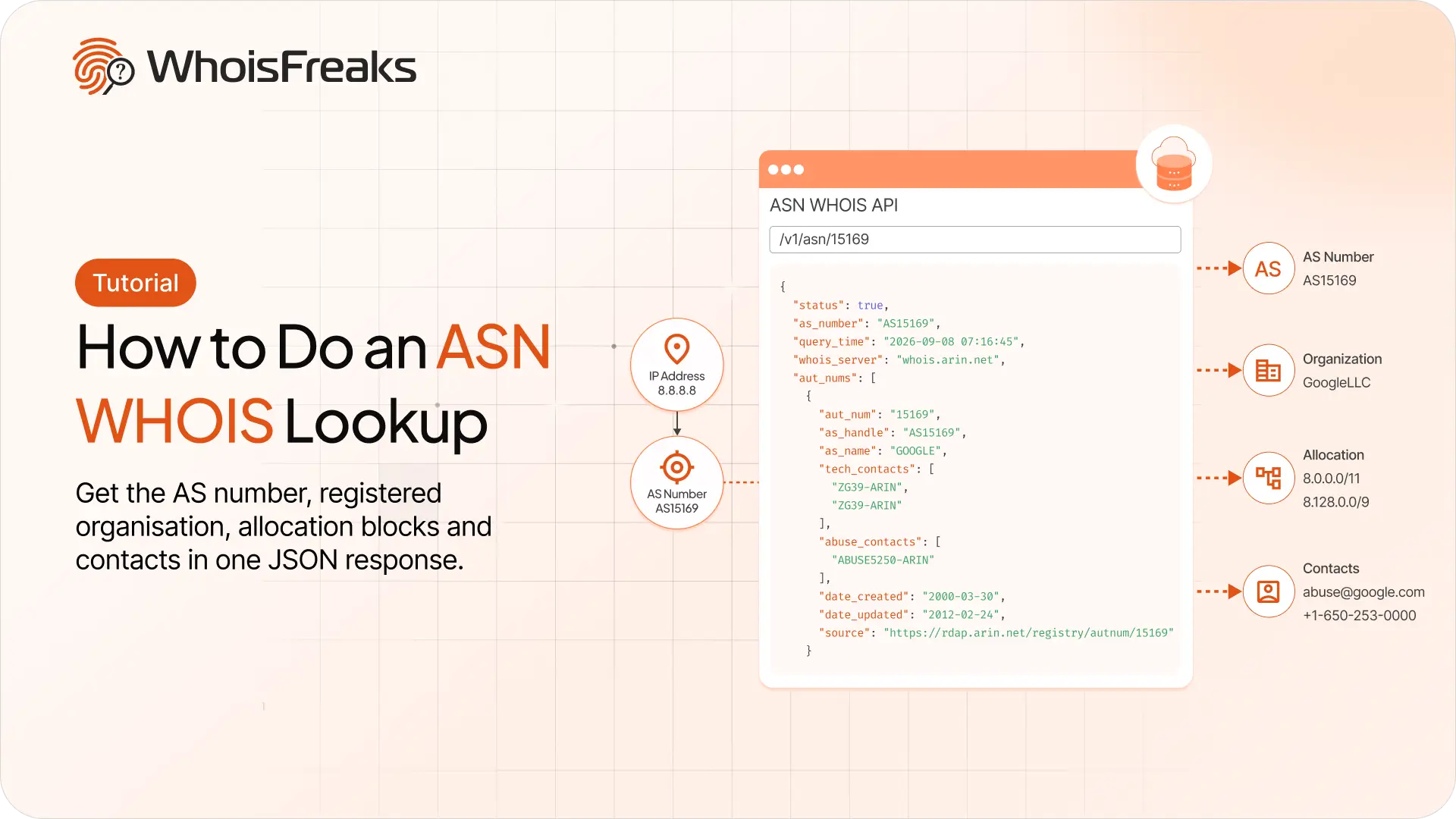
Run an ASN lookup with the WhoisFreaks ASN WHOIS API. Get the AS number, registered organisation, allocation blocks and contacts in one JSON response.
12 min read

Getting 429s with credits to spare? Raise your requests per minute from the billing dashboard and see what the add-on costs first.
8 min read
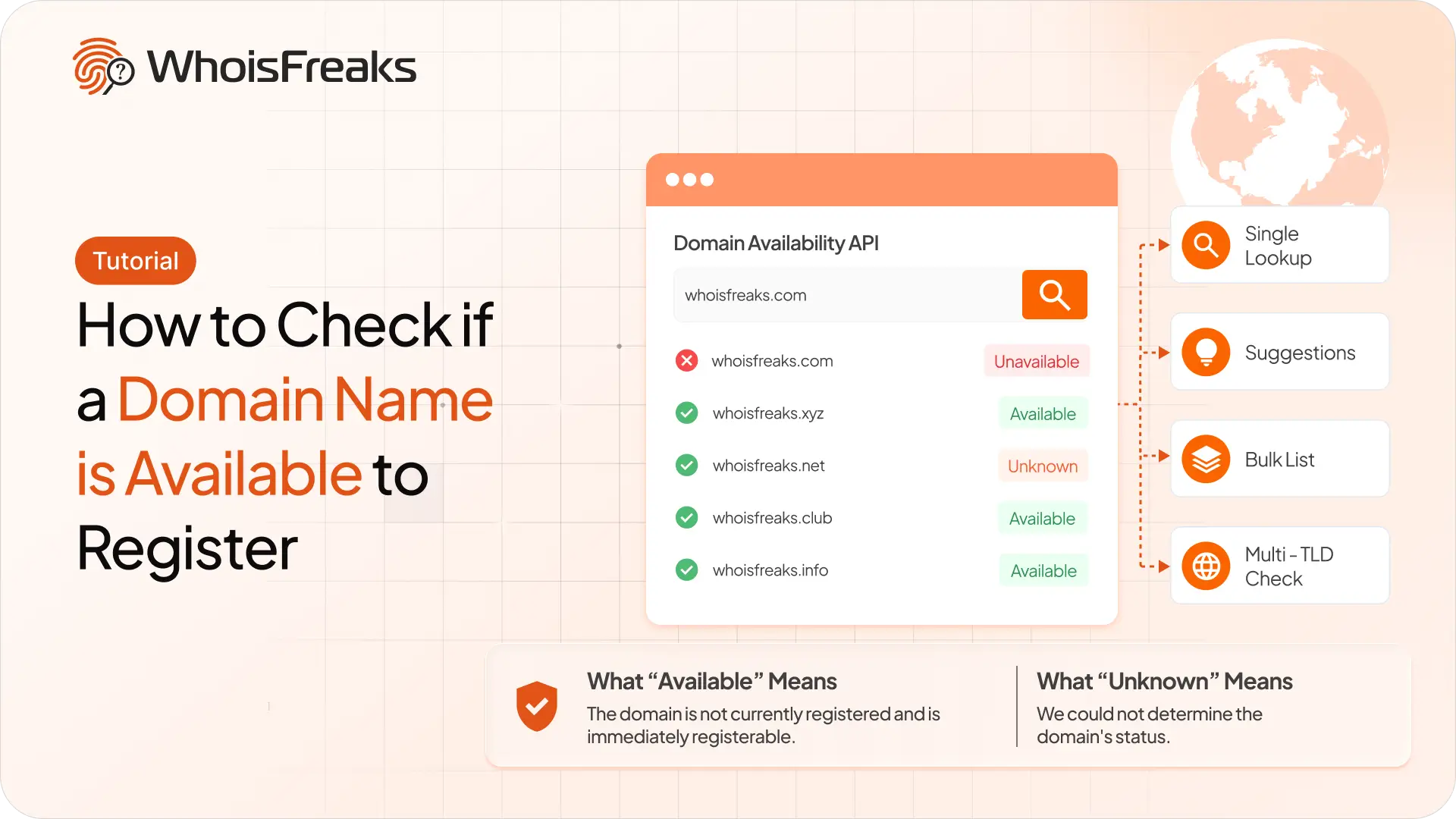
Check whether a domain name is free to register with the WhoisFreaks Domain Availability API - single lookups, suggestions, bulk lists and multi-TLD checks.
10 min read