
Tutorial
How to Get DNS Records with an API (cURL Tutorial)

Written By Qasim, WhoisFreaks Team Published: September 14, 2026, Last Updated: September 14, 2026
Tutorial
Written By Qasim, WhoisFreaks Team Published: September 14, 2026, Last Updated: September 14, 2026
Getting DNS records with an API returns a domain's full zone in one call: the A record pointing at its host, the MX records handling its mail, the NS records controlling it, and the TXT records proving ownership. This tutorial covers the WhoisFreaks DNS API end to end, using cURL: how to run a live lookup, read every field in the response, narrow to a single record type, resolve an IP, pull dated history, and handle the failures that break scripts in production.
You'll need an API key. If you don't have one yet, follow sign up and get your API key first
Every domain publishes a set of records in its DNS zone, and each record type answers a different question:
| Record | Answers | Typical use |
| A | Which IPv4 address does this domain resolve to? | Finding the hosting server |
| AAAA | Which IPv6 address does it resolve to? | Checking IPv6 readiness |
| NS | Which nameservers are authoritative for it? | Identifying the DNS provider |
| MX | Which mail servers accept its email? | Identifying the email provider |
| TXT | Arbitrary text: SPF, DKIM, DMARC, site verification | Email authentication, ownership proof |
| CNAME | Which name is this one an alias for? | Following alias chains |
| SOA | Who administers the zone, and how is it cached? | Zone health, serial tracking |
| SPF | Which servers may send mail as this domain? | Anti-spoofing checks |
A single API call returns all of them, so you rarely need more than one request per domain. This table is a working reference rather than an explanation; for how each record type is structured and why it exists, the complete DNS guide covers them individually.
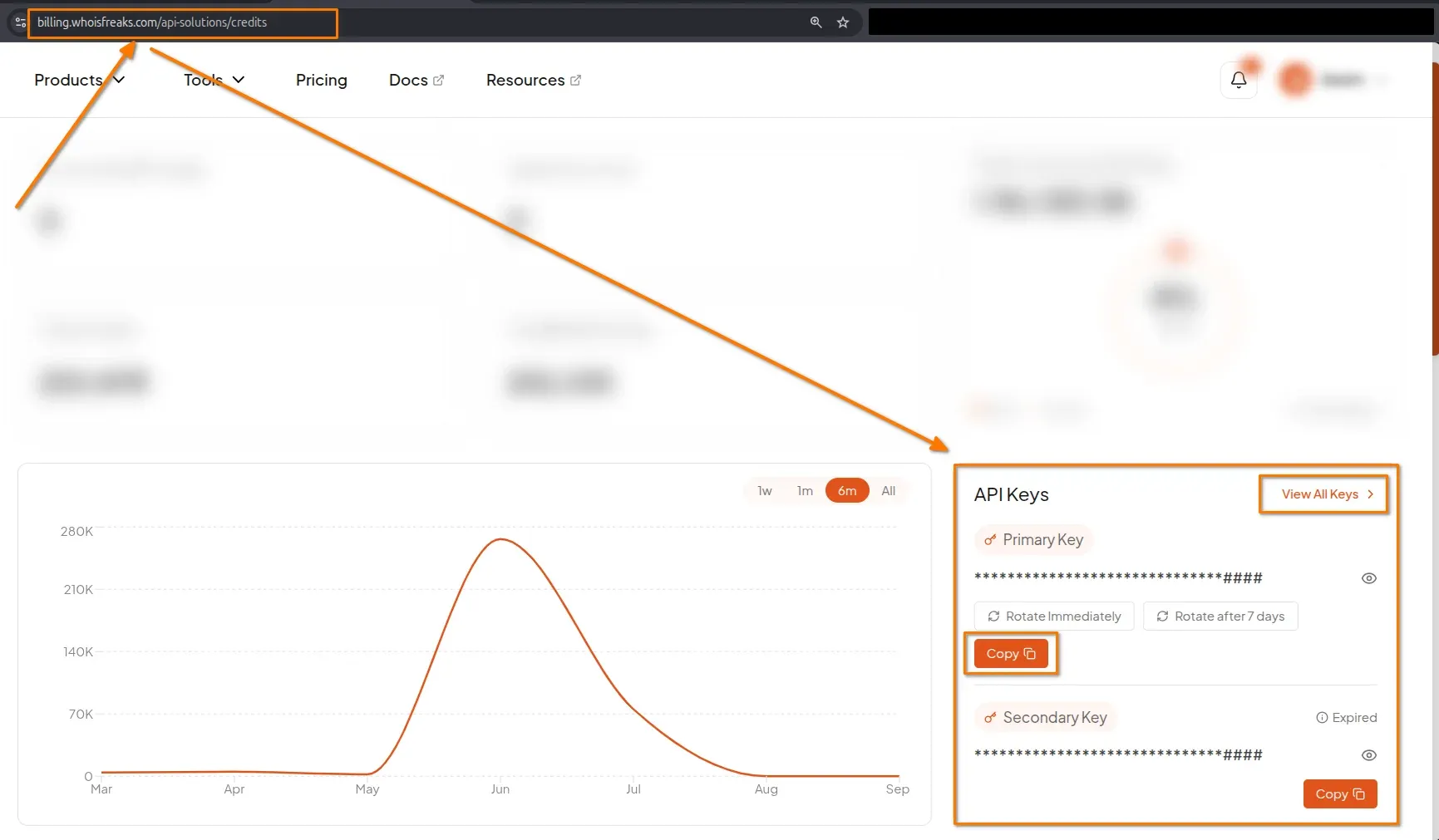
Sign in to the WhoisFreaks dashboard and open API Keys. Copy your primary key - it's the only credential the DNS API needs, passed as the apiKey query parameter.
The live endpoint takes a domain name and a record type. Use type=all to get everything at once:
curl -L --max-time 3600 "https://api.whoisfreaks.com/v2.0/dns/live?apiKey=API_KEY&domainName=whoisfreaks.com&type=all"Replace API_KEY with your key and whoisfreaks.com with the domain you're checking. That's the whole request: no headers, no request body, no authentication dance.
| Parameter | Required | Value |
| apiKey | Yes | Your API key from the dashboard |
| domainName | Yes* | The domain to look up, without http:// or a trailing dot |
| ipAddress | Yes* | An IP address, for a PTR (reverse) record lookup |
| type | Yes | all, or a comma-separated list: A, AAAA, NS, MX, CNAME, SOA, TXT, SPF |
| format | No | JSON or XML. Defaults to JSON. |
Supply domainName, ipAddress, or both; at least one is required.
type is not limited to one value. type=mx,ns returns just those two record sets, which is often the right middle ground between one type and the whole zone.
A live DNS lookup costs 1 credit per successful domain query; see the credit usage documentation.
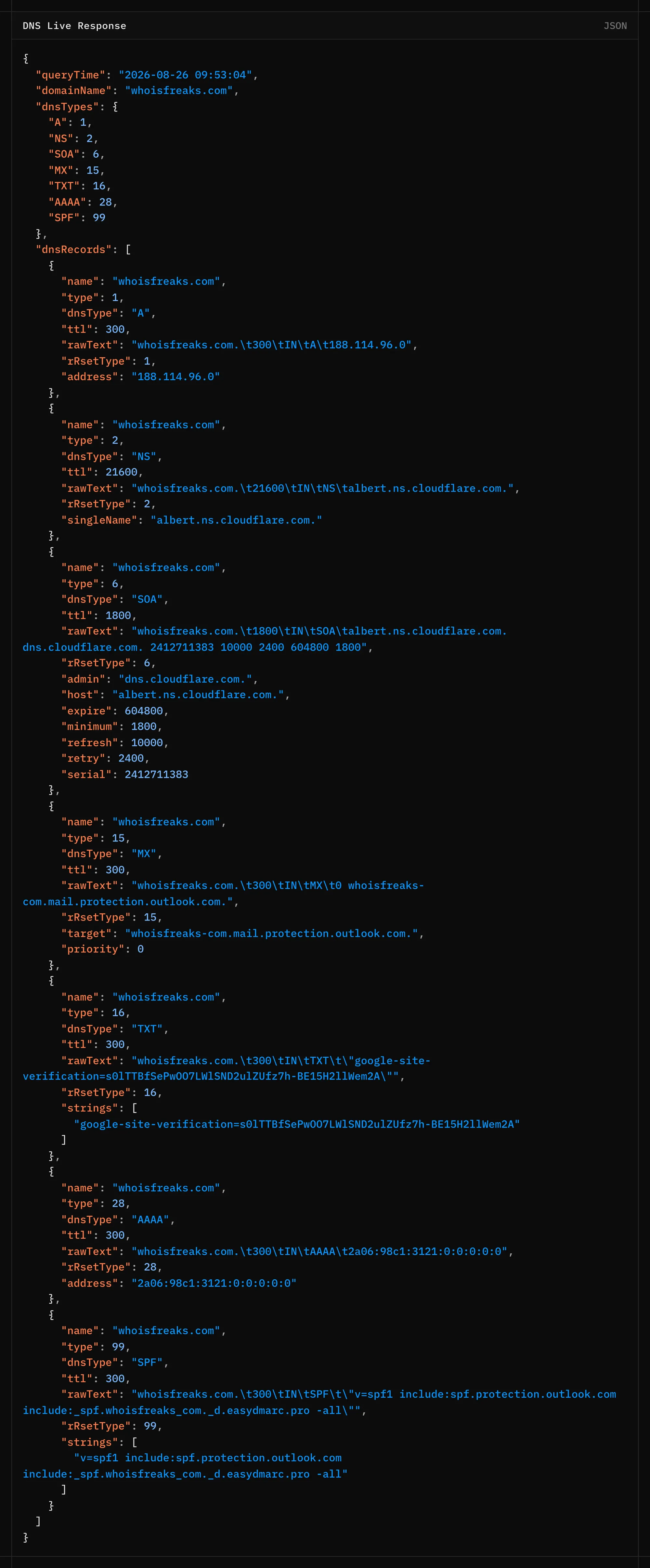
The response is JSON with a summary block followed by the records themselves:
{
  "queryTime": "2026-08-26 09:53:04",
  "domainName": "whoisfreaks.com",
  "dnsTypes": {
    "A": 1,
    "NS": 2,
    "SOA": 6,
    "MX": 15,
    "TXT": 16,
    "AAAA": 28,
    "SPF": 99
  },
  "dnsRecords": [
    {
      "name": "whoisfreaks.com",
      "type": 1,
      "dnsType": "A",
      "ttl": 300,
      "rawText": "whoisfreaks.com.\t300\tIN\tA\t188.114.96.0",
      "rRsetType": 1,
      "address": "188.114.96.0"
    },
    {
      "name": "whoisfreaks.com",
      "type": 2,
      "dnsType": "NS",
      "ttl": 21600,
      "rawText": "whoisfreaks.com.\t21600\tIN\tNS\talbert.ns.cloudflare.com.",
      "rRsetType": 2,
      "singleName": "albert.ns.cloudflare.com."
    },
    {
      "name": "whoisfreaks.com",
      "type": 6,
      "dnsType": "SOA",
      "ttl": 1800,
      "rawText": "whoisfreaks.com.\t1800\tIN\tSOA\talbert.ns.cloudflare.com. dns.cloudflare.com. 2412711383 10000 2400 604800 1800",
      "rRsetType": 6,
      "admin": "dns.cloudflare.com.",
      "host": "albert.ns.cloudflare.com.",
      "expire": 604800,
      "minimum": 1800,
      "refresh": 10000,
      "retry": 2400,
      "serial": 2412711383
    },
    {
      "name": "whoisfreaks.com",
      "type": 15,
      "dnsType": "MX",
      "ttl": 300,
      "rawText": "whoisfreaks.com.\t300\tIN\tMX\t0 whoisfreaks-com.mail.protection.outlook.com.",
      "rRsetType": 15,
      "target": "whoisfreaks-com.mail.protection.outlook.com.",
      "priority": 0
    },
    {
      "name": "whoisfreaks.com",
      "type": 16,
      "dnsType": "TXT",
      "ttl": 300,
      "rawText": "whoisfreaks.com.\t300\tIN\tTXT\t\"google-site-verification=s0lTTBfSePwOO7LWlSND2ulZUfz7h-BE15H2llWem2A\"",
      "rRsetType": 16,
      "strings": [
        "google-site-verification=s0lTTBfSePwOO7LWlSND2ulZUfz7h-BE15H2llWem2A"
      ]
    },
    {
      "name": "whoisfreaks.com",
      "type": 28,
      "dnsType": "AAAA",
      "ttl": 300,
      "rawText": "whoisfreaks.com.\t300\tIN\tAAAA\t2a06:98c1:3121:0:0:0:0:0",
      "rRsetType": 28,
      "address": "2a06:98c1:3121:0:0:0:0:0"
    },
    {
      "name": "whoisfreaks.com",
      "type": 99,
      "dnsType": "SPF",
      "ttl": 300,
      "rawText": "whoisfreaks.com.\t300\tIN\tSPF\t\"v=spf1 include:spf.protection.outlook.com include:_spf.whoisfreaks_com._d.easydmarc.pro -all\"",
      "rRsetType": 99,
      "strings": [
        "v=spf1 include:spf.protection.outlook.com include:_spf.whoisfreaks_com._d.easydmarc.pro -all"
      ]
    }
  ]
}| Field | Meaning |
| queryTime | When the records were resolved, in UTC. DNS changes, so this timestamp matters. |
| domainName | The domain that was queried, echoed back. |
| ipAddress | Present when you queried by IP. The address the PTR lookup was run against. |
| dnsTypes | A map of every record type present, keyed by type name, with its IANA numeric type code as the value. MX: 15 means MX records are present, not that there are fifteen of them. A quick way to see what a domain publishes without walking the array. |
| dnsRecords | The records themselves, one object per record. |
There is no status or domainRegistered field on this endpoint. A failed lookup is signaled by the HTTP status code and an error body, a domain that does not exist returns 404 with the message Entered Domain does not exist, not a 200 with a flag set to false.
Every record object shares name, dnsType, ttl and rawText. The remaining fields depend on the type, and this is the part that trips people up:
| Record type | Field holding the answer |
|---|---|
| A, AAAA | address holds the IP |
| NS, CNAME, PTR | singleName holds the target hostname, with a trailing dot |
| MX | target is the mail server, priority is its preference value. Lower wins. |
| TXT, SPF | strings is an array of the text chunks, already unquoted |
| SOA | host, admin, serial, refresh, retry, expire, minimum |
rawText is always present and always the record exactly as DNS returned it. If you're logging for later comparison or diffing a zone over time, store rawText; it's stable and complete.
ttl is the number of seconds resolvers may cache the record. Flag a very low TTL on a domain you're investigating. It lets an operator move infrastructure quickly, which is common in both CDNs and fast-flux abuse.

Fetching everything is convenient but wasteful when you only care about one type. Swap type=all for the type you want:
curl -L "https://api.whoisfreaks.com/v2.0/dns/live?apiKey=API_KEY&domainName=whoisfreaks.com&type=mx"The response has the same shape. dnsTypes lists only the type you asked for, and dnsRecords contains only those records.
type=a where the site is hostedtype=ns who runs the DNStype=mx who handles the mailtype=txt SPF, DKIM and DMARC policiesThe same endpoint accepts an ipAddress parameter, which runs a PTR (reverse) lookup, asking what hostname an IP address claims as its name. Pass it on its own, or together with a domain:
curl -L "https://api.whoisfreaks.com/v2.0/dns/live?apiKey=API_KEY&ipAddress=8.8.8.8&type=all"curl -L "https://api.whoisfreaks.com/v2.0/dns/live?apiKey=API_KEY&domainName=whoisfreaks.com&ipAddress=8.8.8.8&type=all"Passing both simply returns both sets of records in one response; the domain's records and the IP's PTR record, side by side in the same dnsRecords array. It does not change how the domain is resolved.
The PTR answer is in singleName. name holds the in-addr.arpa form of the query, which is what trips people up the first time:
{
  "queryTime": "2026-08-26 09:54:51",
  "ipAddress": "8.8.8.8",
  "dnsTypes": {
    "PTR": 12
  },
  "dnsRecords": [
    {
      "name": "8.8.8.8.in-addr.arpa",
      "type": 12,
      "dnsType": "PTR",
      "ttl": 15535,
      "rawText": "8.8.8.8.in-addr.arpa.\t15535\tIN\tPTR\tdns.google.",
      "rRsetType": 12,
      "singleName": "dns.google."
    }
  ]
}
PTR is not one of the values the documented type enum accepts, even though PTR records come back. Use type=all, as the documentation's own sample does.
A live lookup is a snapshot. To see how a domain's DNS has changed, use the historical endpoint. This section covers the request shape only; for reading and interpreting a domain's DNS timeline, see how to check DNS history for any domain.
curl -L "https://api.whoisfreaks.com/v2.0/dns/historical?apiKey=API_KEY&domainName=whoisfreaks.com&type=all&page=1"The response is paginated and groups records by observation date:
{
  "totalRecords": 71,
  "totalPages": 1,
  "currentPage": 1,
  "historicalDnsRecords": [
    {
      "queryTime": "2024-04-01",
      "domainName": "whoisfreaks.com.",
      "dnsTypes": {
        "A": 1
      },
      "dnsRecords": [
        {
          "name": "whoisfreaks.com",
          "type": 1,
          "dnsType": "A",
          "ttl": 3600,
          "rawText": "whoisfreaks.com.\t3600\tIN\tA\t139.144.20.35",
          "rRsetType": 1,
          "address": "139.144.20.35"
        }
      ]
    },
    {
      "queryTime": "2024-05-07",
      "domainName": "whoisfreaks.com.",
      "dnsTypes": {
        "A": 1
      },
      "dnsRecords": [
        {
          "name": "whoisfreaks.com",
          "type": 1,
          "dnsType": "A",
          "ttl": 3600,
          "rawText": "whoisfreaks.com.\t3600\tIN\tA\t4.157.25.229",
          "rRsetType": 1,
          "address": "4.157.25.229"
        }
      ]
    },
    {
      "queryTime": "2025-02-18",
      "domainName": "whoisfreaks.com.",
      "dnsTypes": {
        "SPF": 99
      },
      "dnsRecords": [
        {
          "name": "whoisfreaks.com",
          "type": 99,
          "dnsType": "SPF",
          "ttl": 3600,
          "rawText": "whoisfreaks.com.\t3600\tIN\tSPF\t\"v=spf1 include:spf.protection.outlook.com -all\"",
          "rRsetType": 99,
          "strings": [
            "v=spf1 include:spf.protection.outlook.com -all"
          ]
        },
        {
          "name": "whoisfreaks.com",
          "type": 99,
          "dnsType": "SPF",
          "ttl": 3600,
          "rawText": "whoisfreaks.com.\t3600\tIN\tSPF\t\"v=spf1 mx include:spf.mtasv.net -all.\"",
          "rRsetType": 99,
          "strings": [
            "v=spf1 mx include:spf.mtasv.net -all."
          ]
        }
      ]
    }
  ]
}
Each entry is dated, so you can trace a domain moving between hosts, changing mail providers, or adding an SPF record. Read totalPages and walk page=1..n to collect the full history. A historical lookup is charged per page, not per domain, so a domain with a long record set costs more than one call.
Real lookups fail in predictable ways. Handle these three before you put a script into production:
The -L flag in these examples follows redirects, and --max-time 3600 caps how long cURL will wait. Keep both in scripted use.
| Step | Action |
| 1 | Copy your API key from the dashboard |
| 2 | GET /v2.0/dns/live with domainName and type=all |
| 3 | Read dnsTypes for a fast overview, dnsRecords for the detail |
| 4 | Narrow to one type with type=a, mx, ns, txt and so on |
| 5 | Query by ipAddress for a PTR lookup when you're starting from an IP |
| 6 | Use /v2.0/dns/historical to see how the records changed |
| 7 | Branch on the HTTP status, expect missing types, respect rate limits |
One request gets you a domain's entire DNS footprint, and the same endpoint scales from a one-off check to a scripted sweep. To run the same lookup across a list of domains in a single call, see how to get bulk WHOIS and DNS records. For live, historical, reverse, and bulk endpoints in one place, along with per-plan rates and the full parameter reference, see the DNS API.
A DNS lookup asks the Domain Name System what records a domain publishes. The most familiar answer is the A record, which maps the domain to an IPv4 address, but the same query also returns nameservers, mail servers, and the text records used for email authentication. The WhoisFreaks DNS API runs the lookup and returns every record as structured JSON.
Send a GET request to https://api.whoisfreaks.com/v2.0/dns/live with your apiKey, the domainName, and type=all. No headers or request body are needed, so a single cURL command is enough. The response contains a dnsTypes summary and a dnsRecords array holding every record.
Yes. Replace type=all with the specific type (A, AAAA, NS, MX, CNAME, SOA, TXT or SPF) or with a comma-separated list such as type=mx,ns.
A live lookup resolves the domain right now and reflects whatever is currently published. A historical lookup returns dated snapshots of what the records used to be, which is how you spot a domain changing hosts, switching mail providers, or adding an SPF record. They're separate endpoints: /v2.0/dns/live and /v2.0/dns/historical.
Check the HTTP status code first, because this endpoint has no status or domainRegistered field to test. A domain that does not exist comes back as 404 with the message "Entered Domain does not exist". A 200 with nothing for a given type means the opposite - the domain resolves fine and simply doesn't publish that record, which is legitimate for a domain with no email service and no MX records.
Yes. Every record includes a rawText field containing the record exactly as DNS returned it, alongside parsed fields like address for A records or target and priority for MX records. Use the parsed fields for logic and rawText for logging and comparison.
Use the ipAddress parameter instead of domainName on the same live endpoint with type=all. That runs a PTR lookup, which asks what hostname the IP claims - the answer is in singleName, while name holds the in-addr.arpa form of the query. You can pass domainName and ipAddress together, which returns both sets of records in the same response rather than changing how either is resolved.
A live DNS lookup costs 1 credit per successful domain query, and a historical DNS lookup costs 2 credits per page of 100 records. Bulk DNS is charged 1 credit per successful query in the batch, and reverse DNS 5 credits per page. The credit usage documentation carries the full table, and your remaining balance is shown in the dashboard. New accounts start with 500 free credits, which is enough to work through this tutorial and test properly.
Find registered typosquatting domains targeting your brand with the WhoisFreaks Domain Typosquats API - keyword scans, wildcard patterns, paging and triage.
11 min read

WhoisFreaks database downloads arrive as .csv.gz, .json.gz or .zip. Extract, verify and read them on Linux, macOS and Windows - including how to work with multi-gigabyte files without unzipping them at all.
11 min read